
Navidrome Quickstart
Configure Koito
Section titled “Configure Koito”This quickstart assumes you are using Docker compose. Below is an example file, adjusted from the actual file I use personally.
services:  koito:    image: gabehf/koito:latest    container_name: koito    depends_on:      - db    user: 1000:1000    environment:      - KOITO_DATABASE_URL=postgres://postgres:<a_super_random_string>@db:5432/koitodb      - KOITO_ALLOWED_HOSTS=koito.mydomain.com,192.168.1.100      - KOITO_SUBSONIC_URL=https://navidrome.mydomain.com # the url to your navidrome instance      - KOITO_SUBSONIC_PARAMS=u=<navidrome_username>&t=<navidrome_token>&s=<navidrome_salt>      - KOITO_DEFAULT_THEME=black # i like this theme, use whatever you want    ports:      - "4110:4110"    volumes:      - ./koito-data:/etc/koito    restart: unless-stopped
  db:    user: 1000:1000    image: postgres:16    container_name: psql    restart: unless-stopped    environment:      POSTGRES_DB: koitodb      POSTGRES_USER: postgres      POSTGRES_PASSWORD: <a_super_random_string>    volumes:      - ./db-data:/var/lib/postgresql/data
How do I get the Subsonic params?
Section titled “How do I get the Subsonic params?”The easiest way to get your Subsonic parameters to open your browser and sign into Navidrome, then press F12 to get to
the developer options and navigate to the Network tab. Find a getCoverArt request (there should be a lot on the home
page) and look for the part of the URL that looks like u=<username>&t=<random_string>&s=<small_random_string>. This
is what you need to copy and provide to Koito.
Configure Navidrome
Section titled “Configure Navidrome”You have to provide Navidrome with the environment variables ND_LISTENBRAINZ_ENABLED=true and
ND_LISTENBRAINZ_BASEURL=<your_koito_url>/apis/listenbrainz/1. The place where you edit these environment variables will change
depending on how you have chosen to deploy Navidrome.
Enable ListenBrainz in Navidrome
Section titled “Enable ListenBrainz in Navidrome”In Navidome, click on Settings in the top right, then click Personal.
Here, you will see that Scrobble to ListenBrainz is turned off. Flip that switch on.
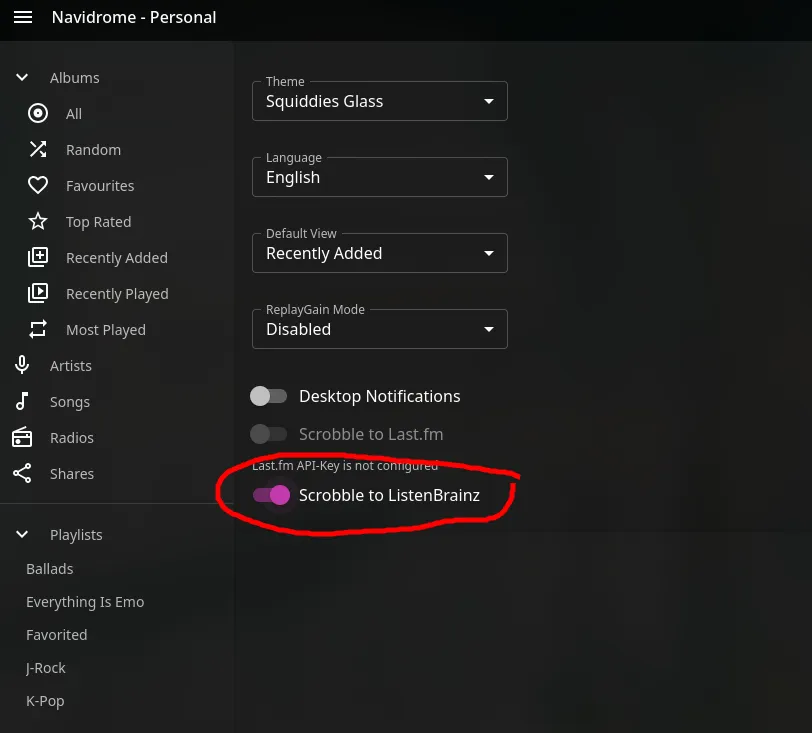
When you flip it on, Navidrome will prompt you for a ListenBrainz token. To get this token, open your Koito page and sign in.
Press the settings button (or hit \) and go to the API Keys tab. Copy the autogenerated API key by either clicking the
copy button, or clicking on the key itself and copying with ctrl+c.
After hitting Save in Navidrome, your listen activity will start being sent to Koito as you listen to tracks.
Happy scrobbling!